Getting started
Linkdean is a bookmark library: save links, file them in folders and tags, find them again with search, and share the folders you choose. This page gets you from a new account to a working library in about ten minutes.
1. Create an account
Sign up at app.linkdean.app/register. The public beta is free. After you sign up, a short welcome offers two optional steps, a vault and an import. Skip either; both stay under Config options in the sidebar.
2. Bring your bookmarks in
Config options → Import / Export takes:
- a browser bookmarks export (Netscape HTML, from Chrome, Firefox, Edge or Safari)
- a Pocket CSV export
- a Raindrop CSV export
- a Linkdean JSON export
Before anything is written, Linkdean checks the file against your library. Bookmarks you already have are listed so you can skip, replace or merge each one. Folders that already exist are reused, so importing the same file twice does not duplicate them. Titles, descriptions and previews fill in in the background.
3. Save new pages
- Add in the header (the Add tab on a phone) opens the bookmark form. Paste a link and Import from URL fills in the title, description and tags.
- The browser extension, the bookmarklet, the share sheet and an iOS Shortcut save the page you are on in one or two clicks. Saving pages fast sets each one up.
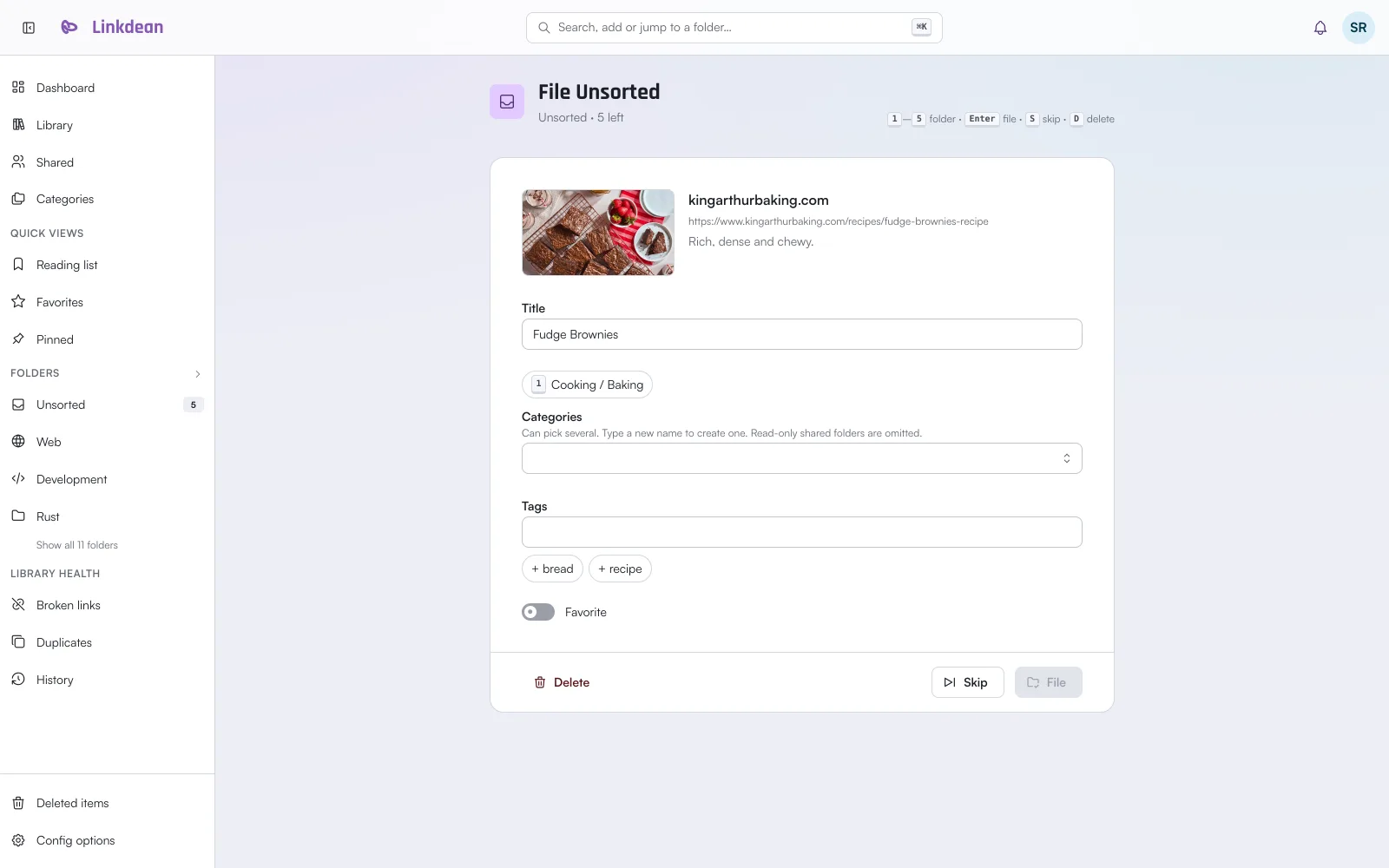
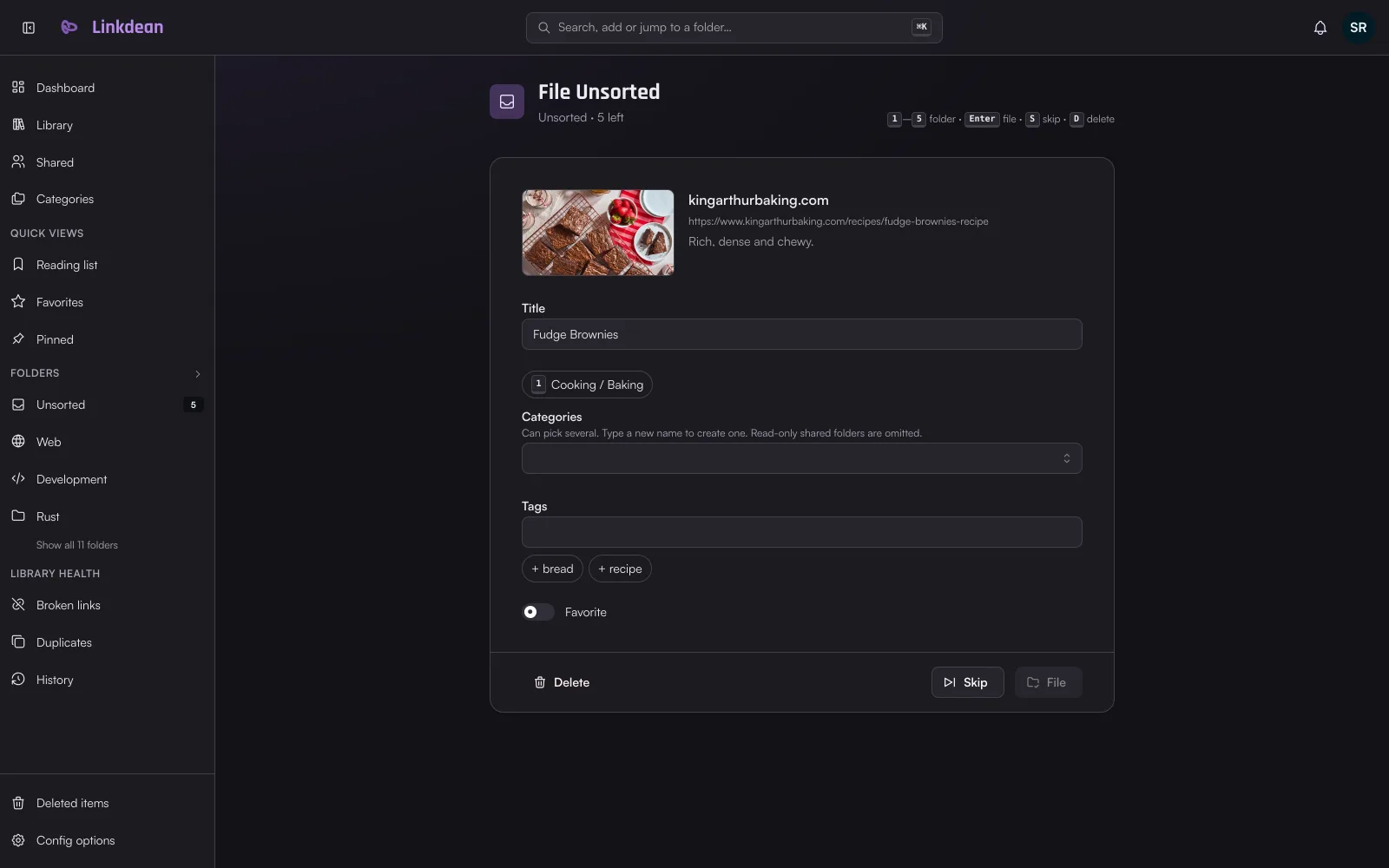
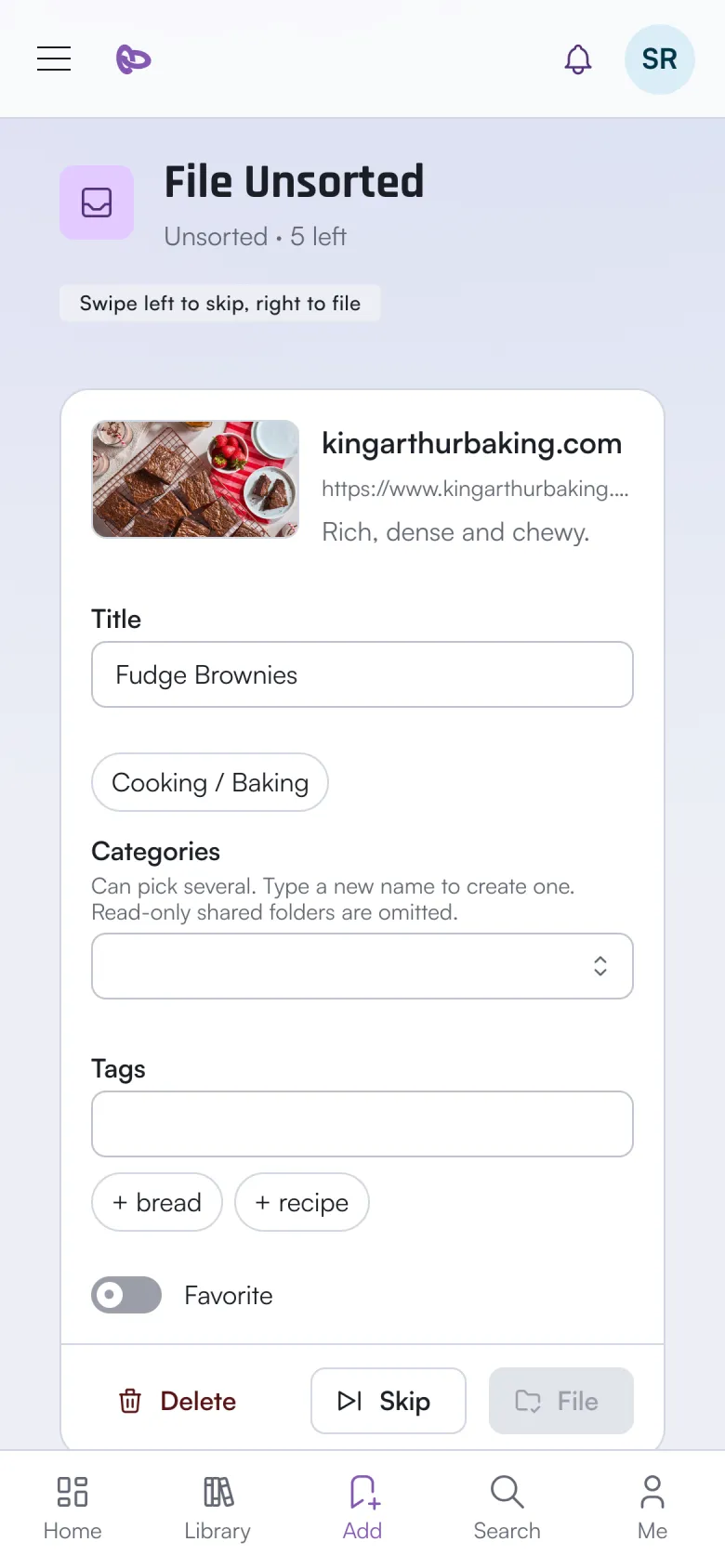
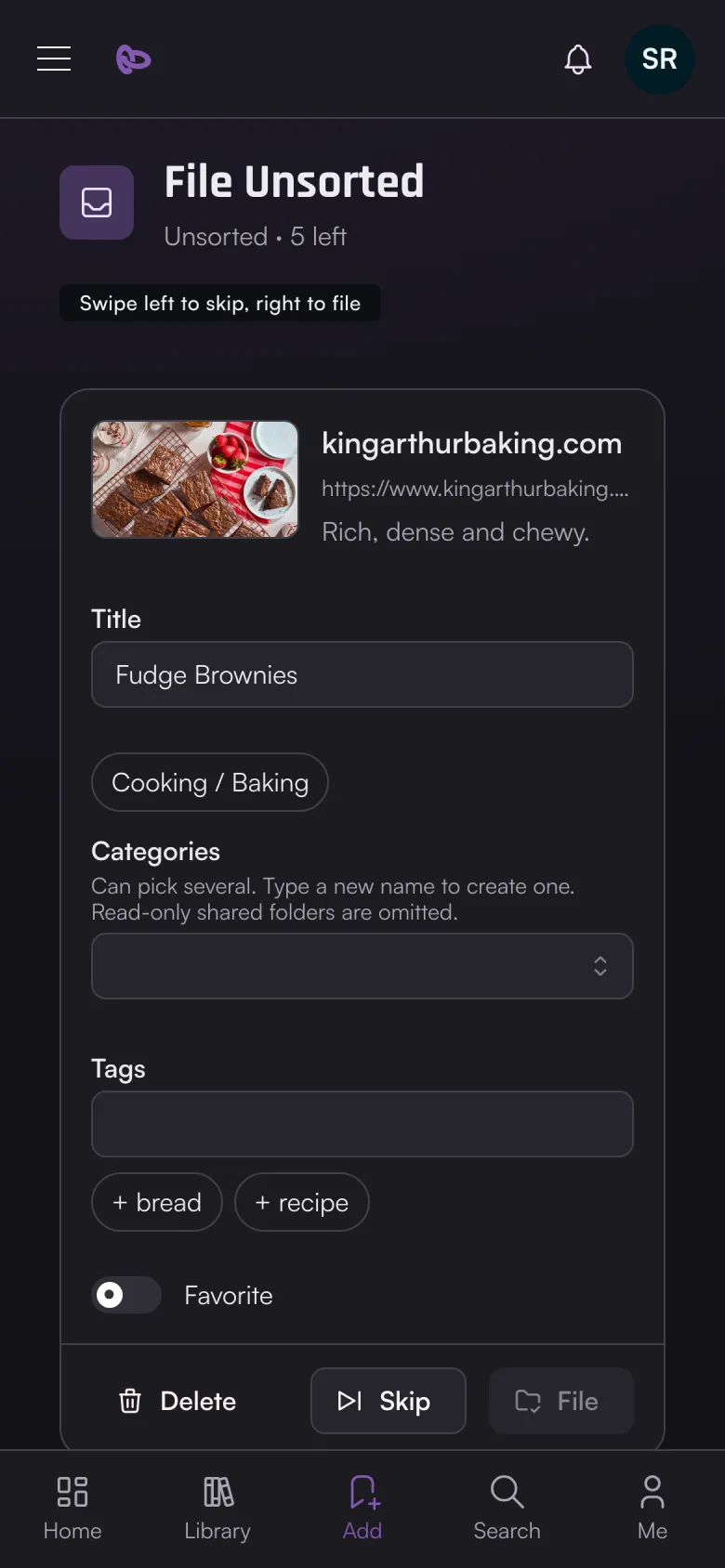
- Save to Unsorted saves without picking a folder. Later, File one by one on Unsorted walks through them and suggests the folders and tags you already use on the same site.
4. Organize
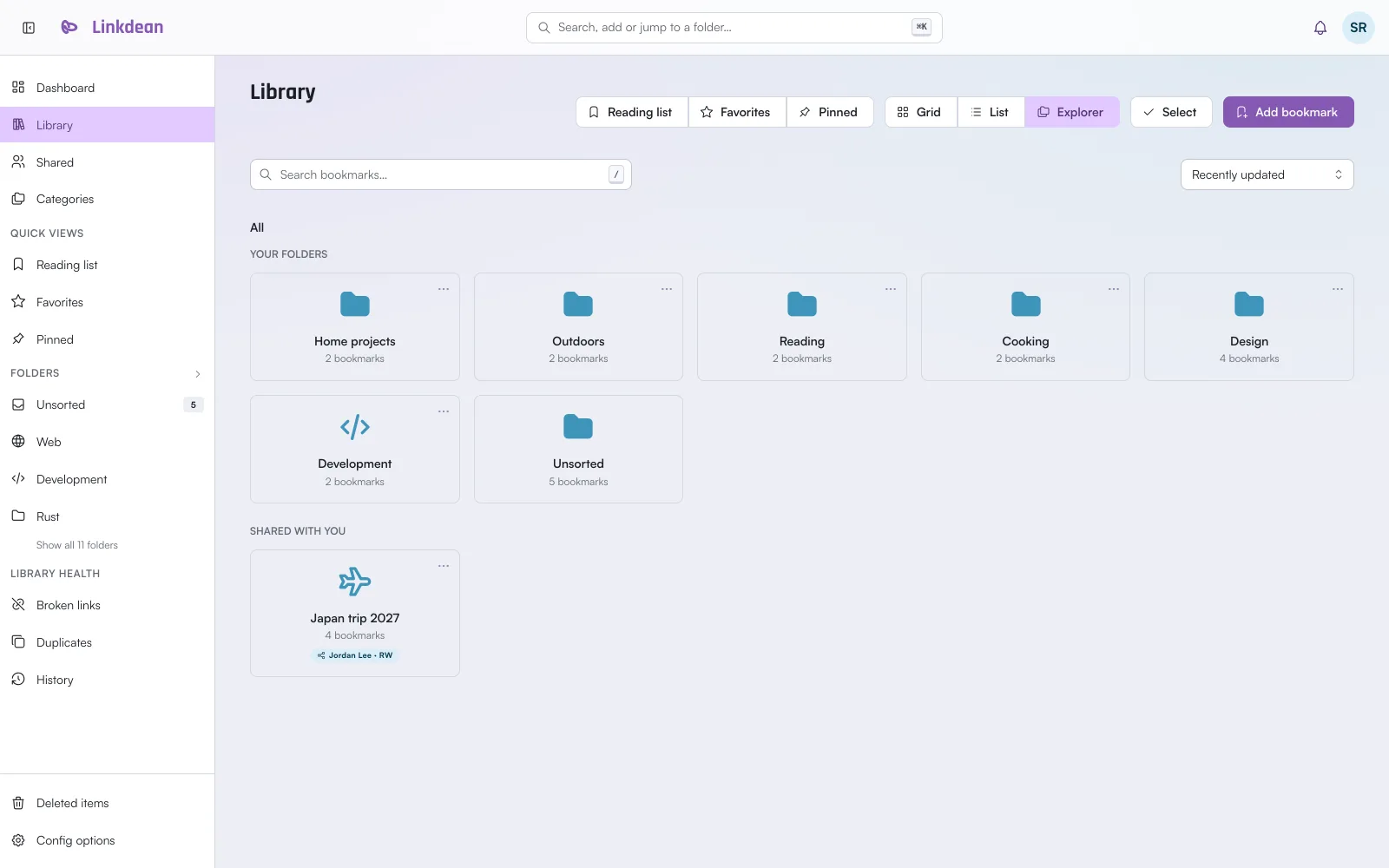
- Folders nest, and a bookmark can sit in more than one folder.
- Tags cut across folders.
- Favorite, Unread and Pin mark bookmarks; pinned ones stay at the top.
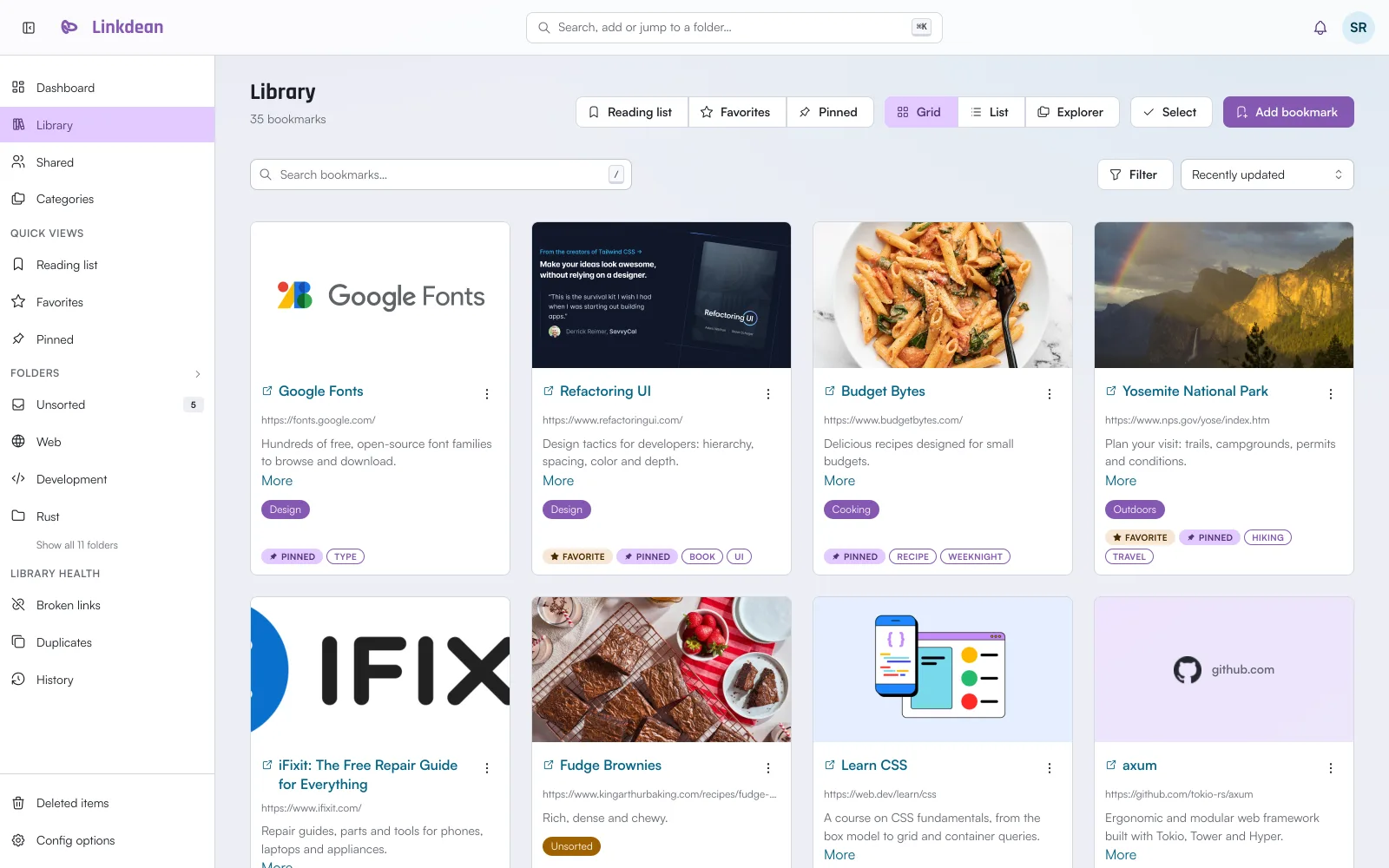
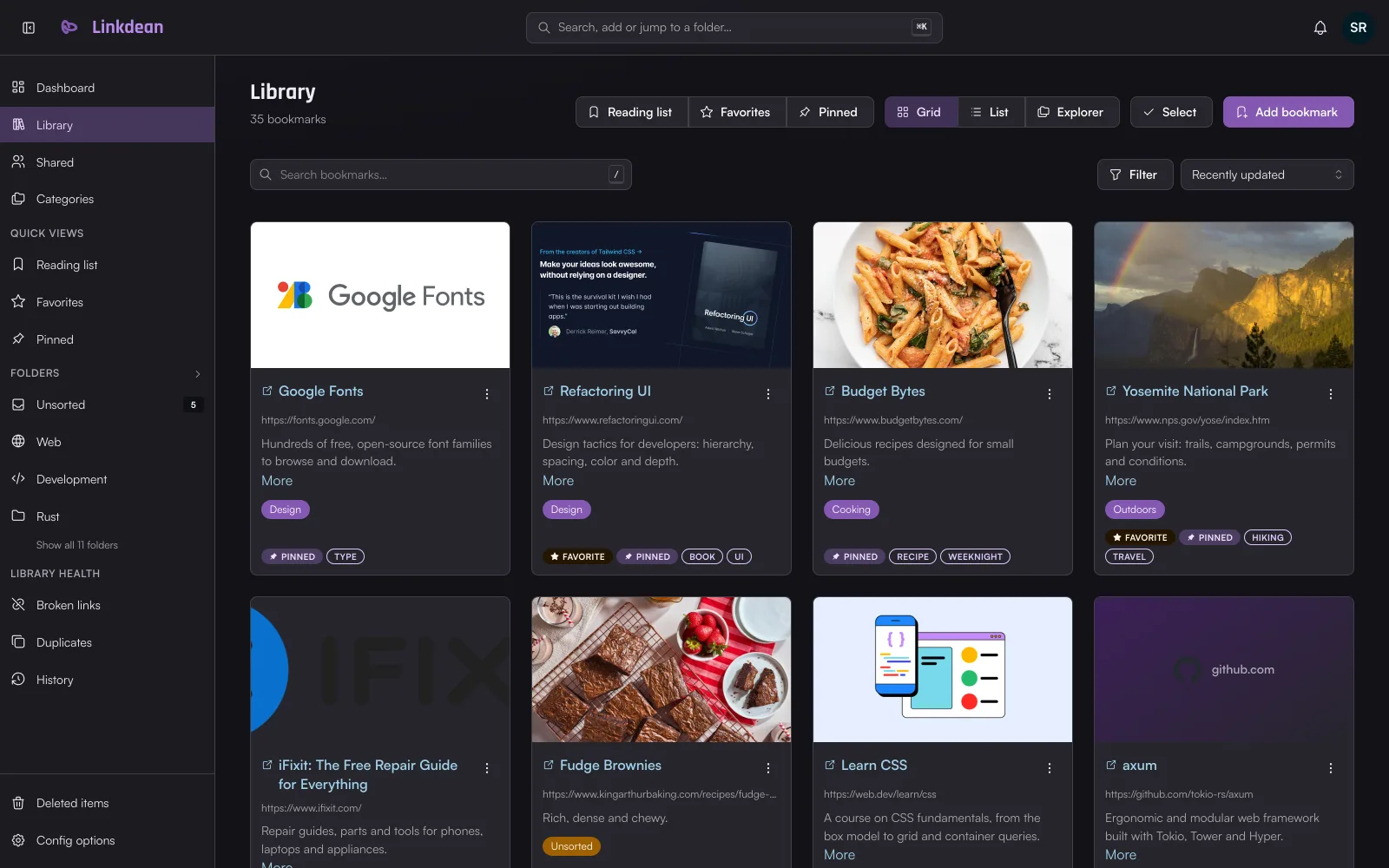
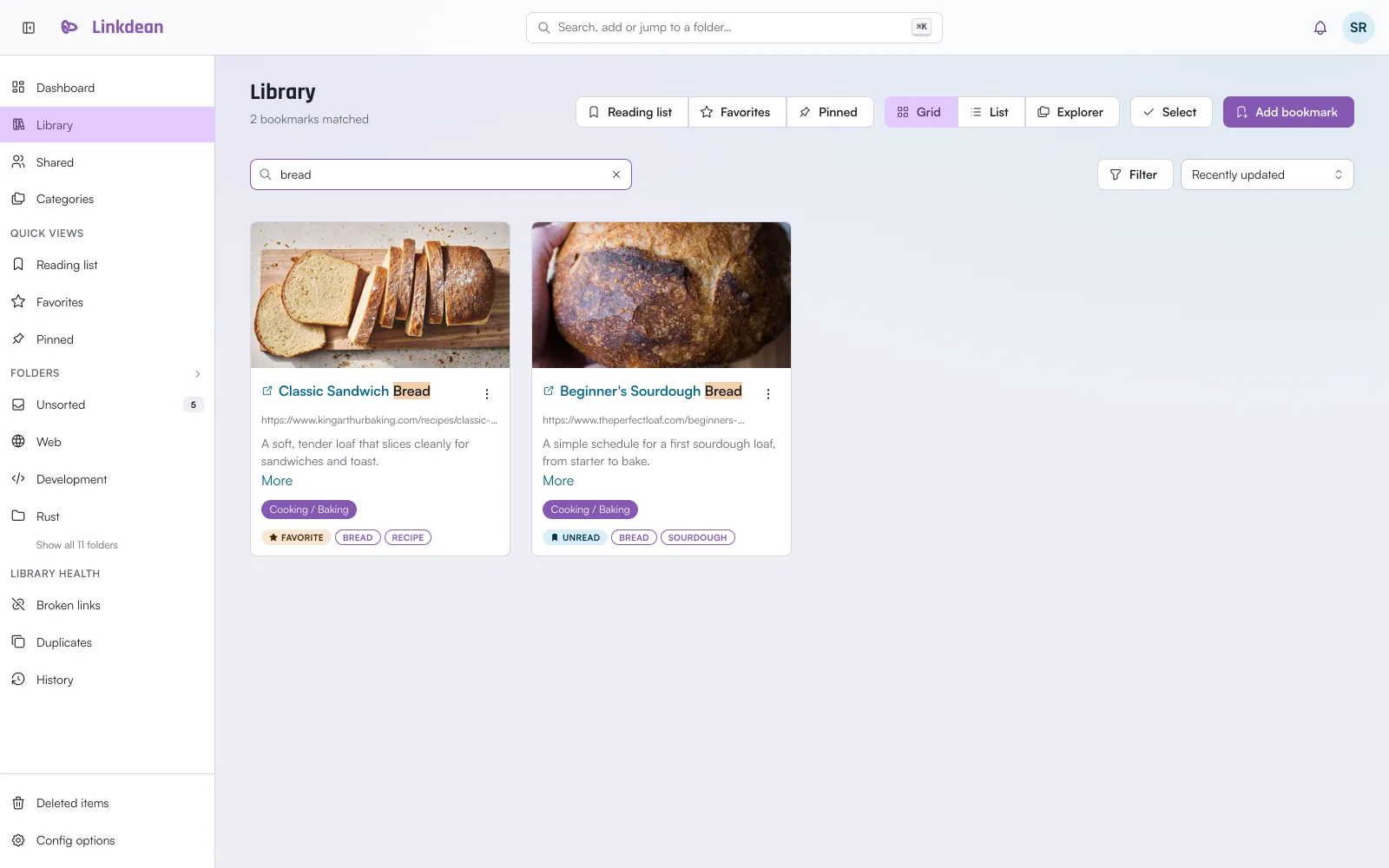
- The Library shows a grid, a compact list or an explorer of folders. Filters cover folder, tag, flags and how recently a bookmark was added.
- Select (or tick a card) moves, tags or deletes many bookmarks at once. Deleted bookmarks wait in Deleted items until you restore or purge them.
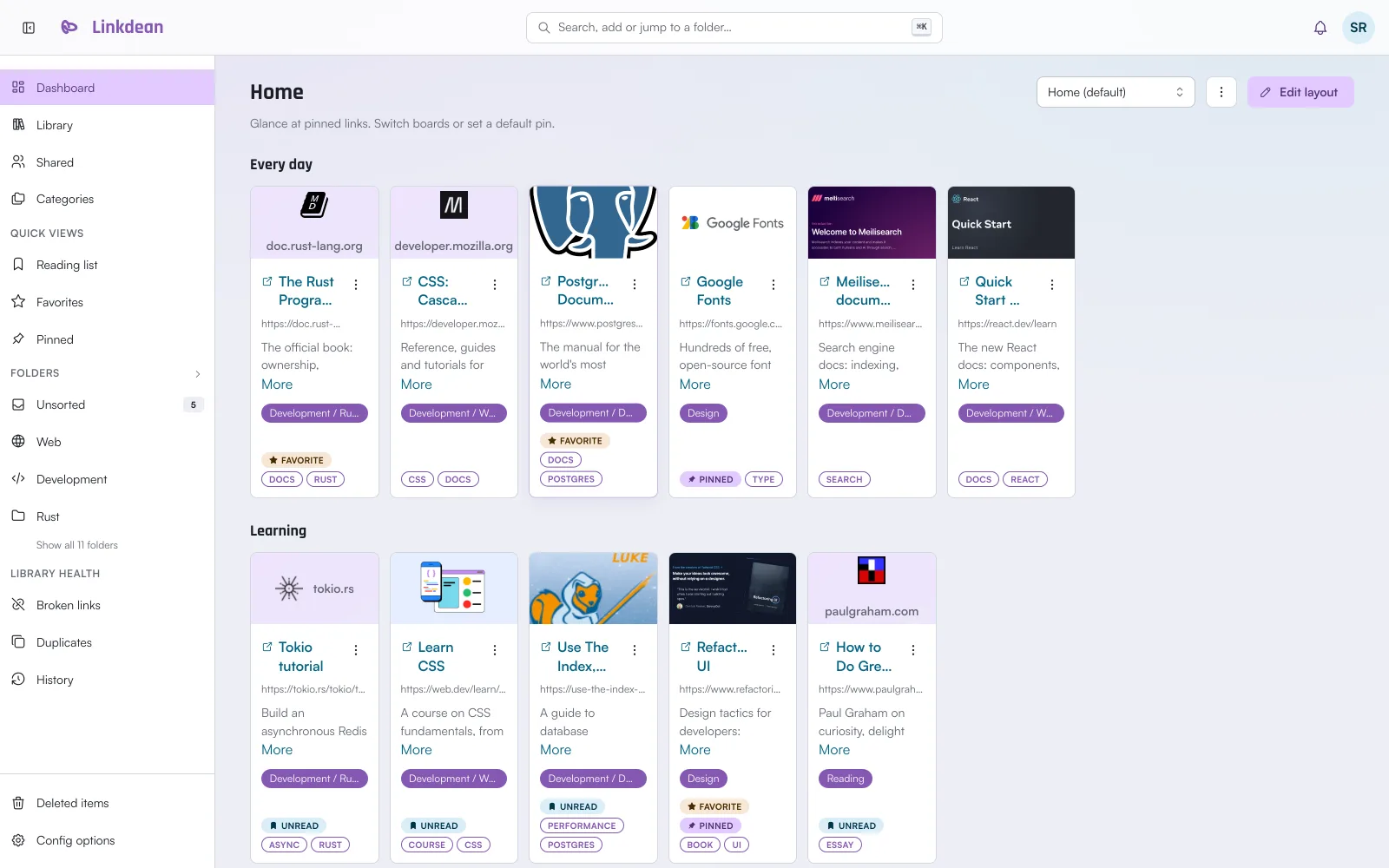
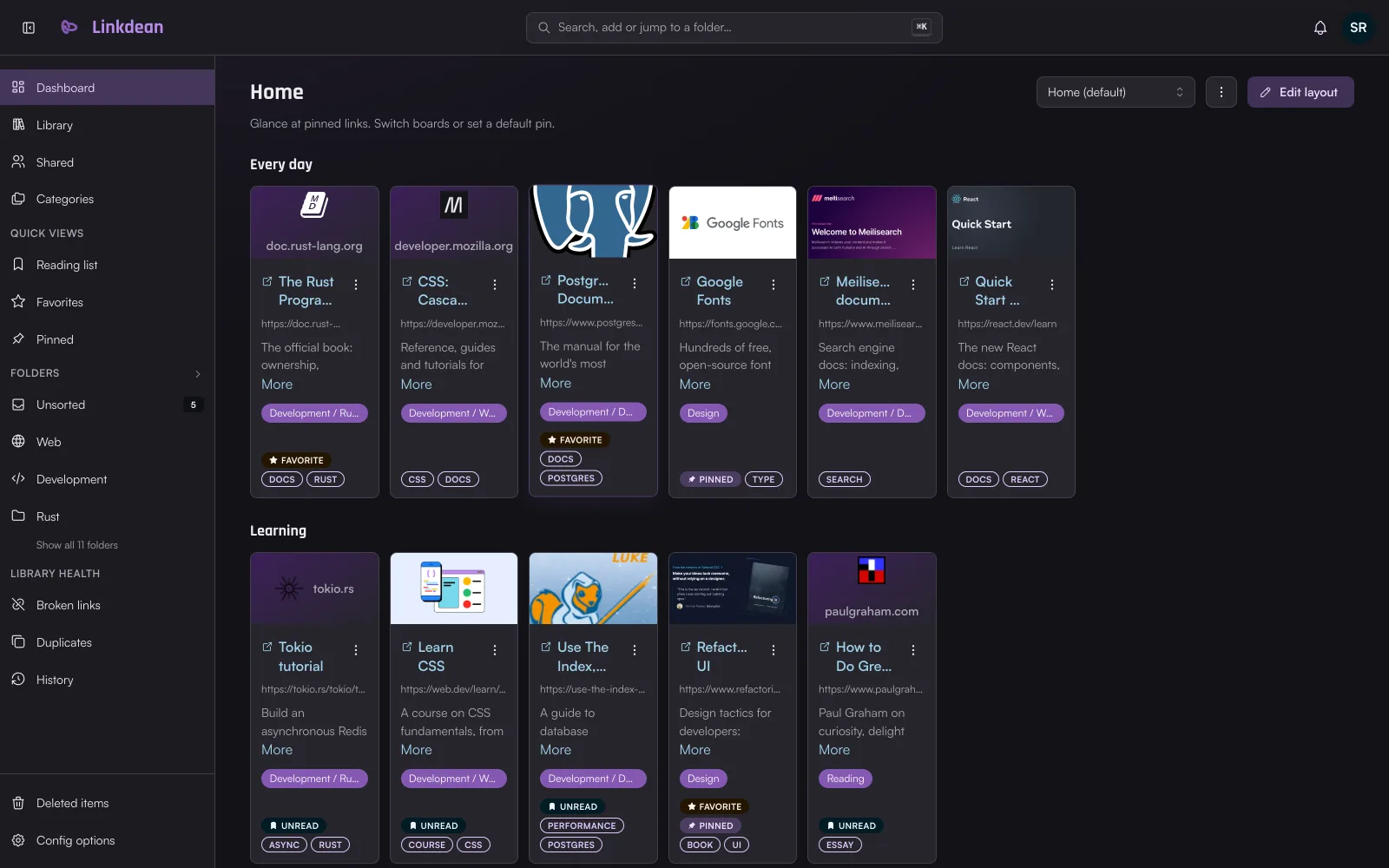
- The Dashboard is your home page: sections of the bookmarks you open most, arranged with Edit layout. Pin bookmarks by hand, or add sections that fill themselves with your latest bookmarks, the ones you open most or the ones you opened last, and show each section as icons, small tiles or cards. Sections form a bento grid: in Edit layout, drag them anywhere, resize them from the corner, and drag pinned bookmarks to reorder them. Filter the whole dashboard from the box under the header, and press
1to9to open a bookmark.
5. Find things
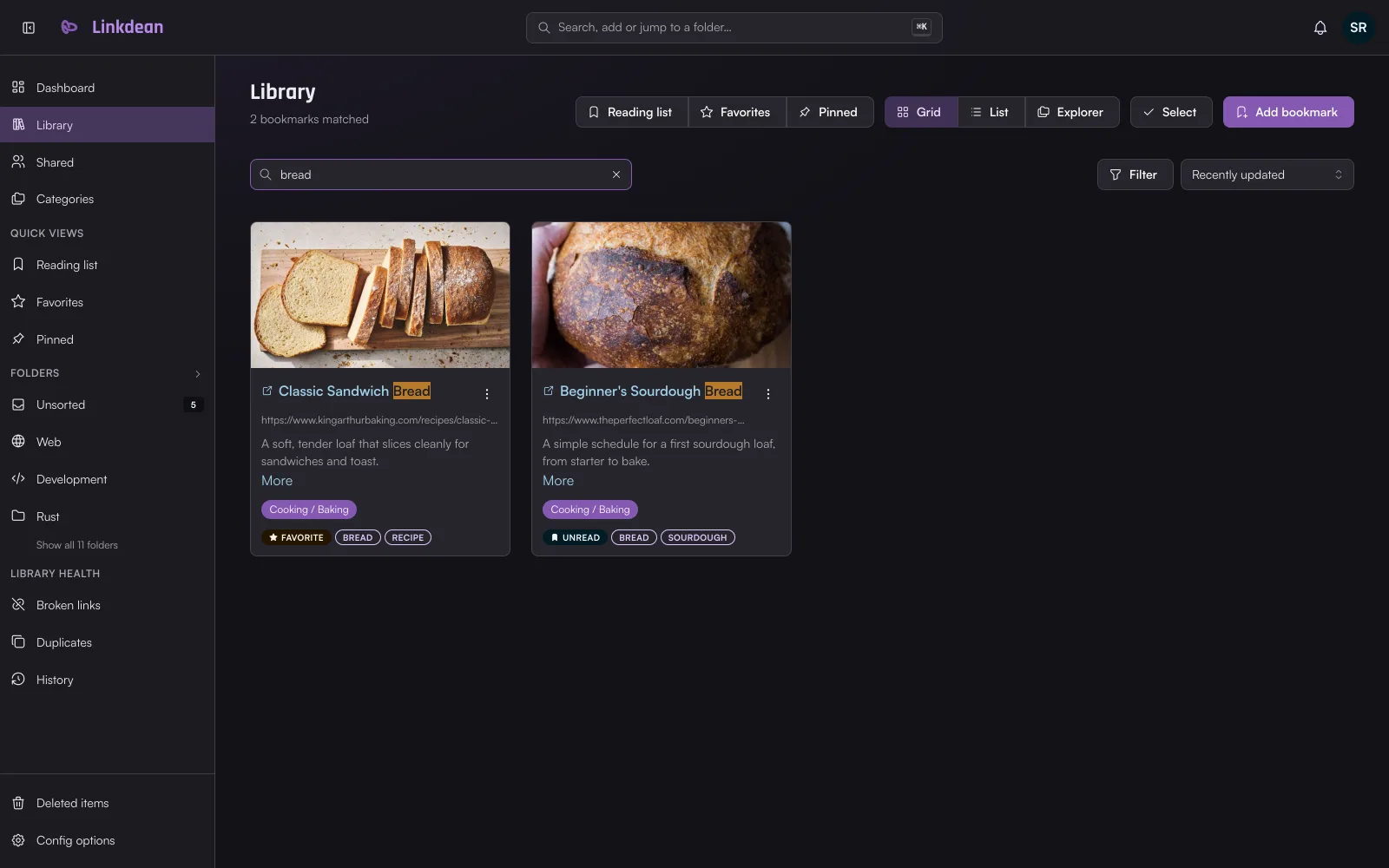
The search field on the Library page searches titles, addresses, descriptions, notes and tags as you type; / focuses it. The field in the header (or ⌘K / Ctrl+K) opens the command palette: add a bookmark, jump to a folder, or send a search to the Library.
Library health in the sidebar lists broken links and duplicate bookmarks.
6. Keep private links private
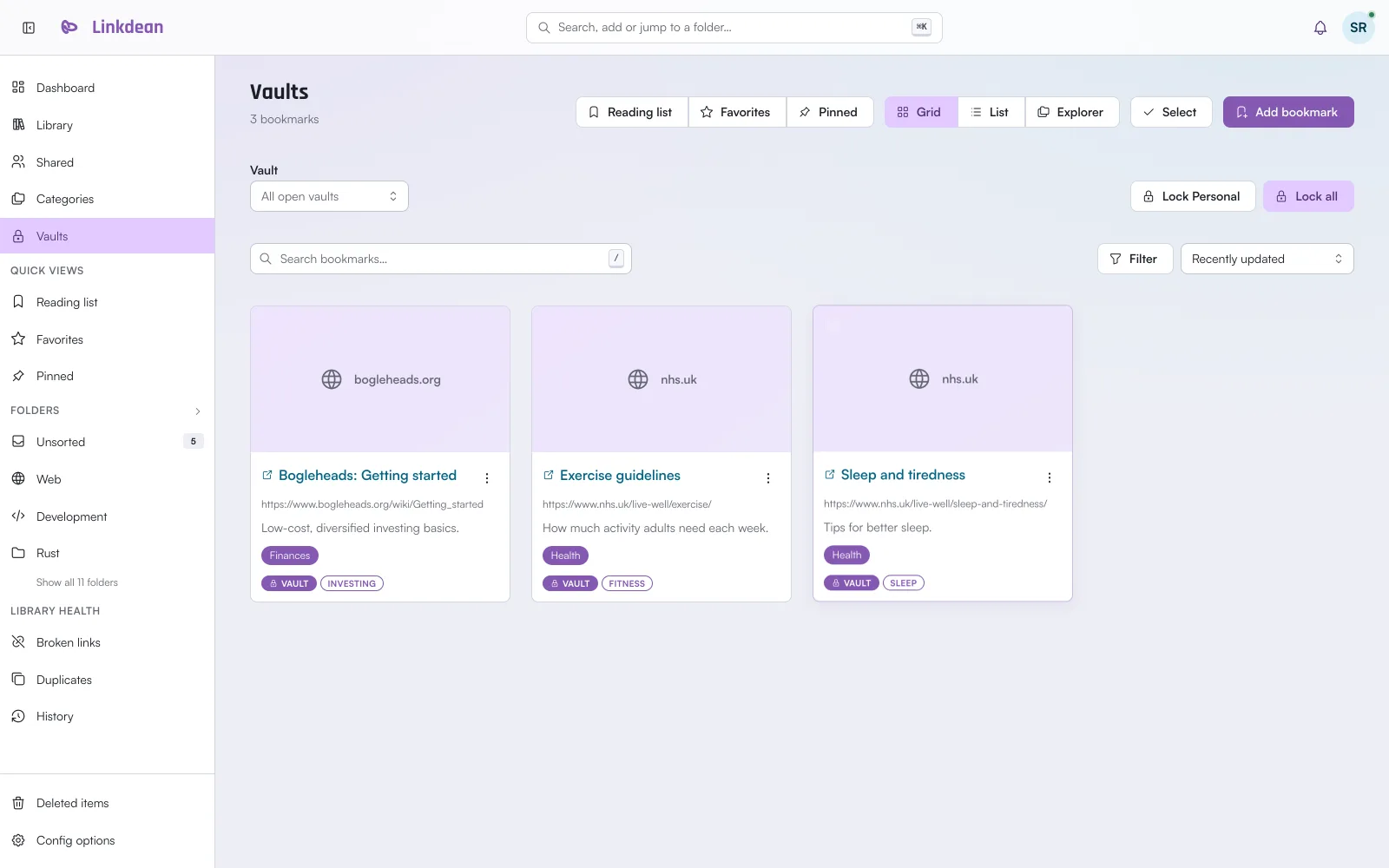
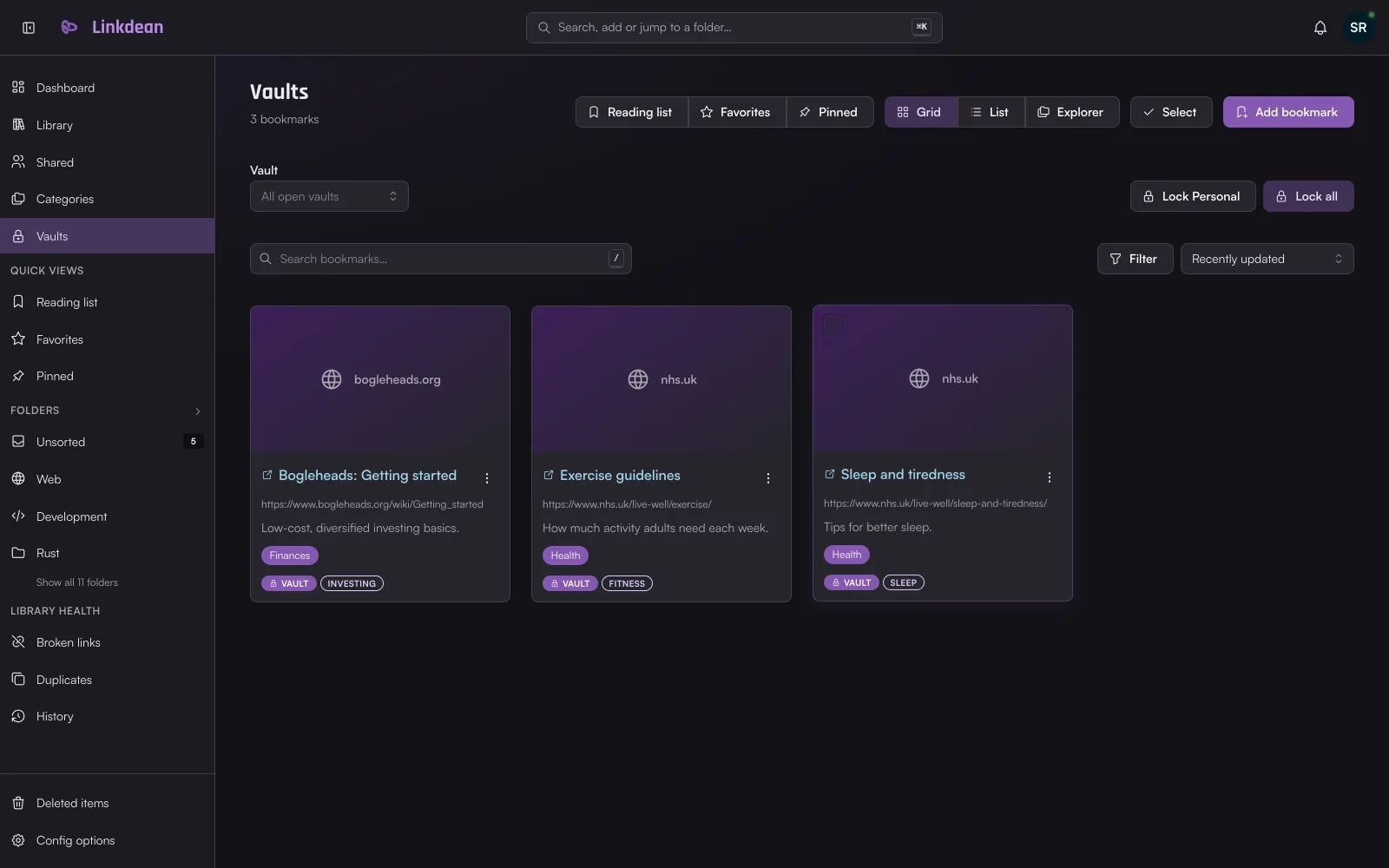
A vault is an encrypted set of folders with its own passphrase. Vault contents are never indexed for search and never shared. Set one up under Config options → Vault. Keep the recovery key it shows you: without the passphrase or the recovery key, the contents cannot be recovered, by you or by us.
7. Share
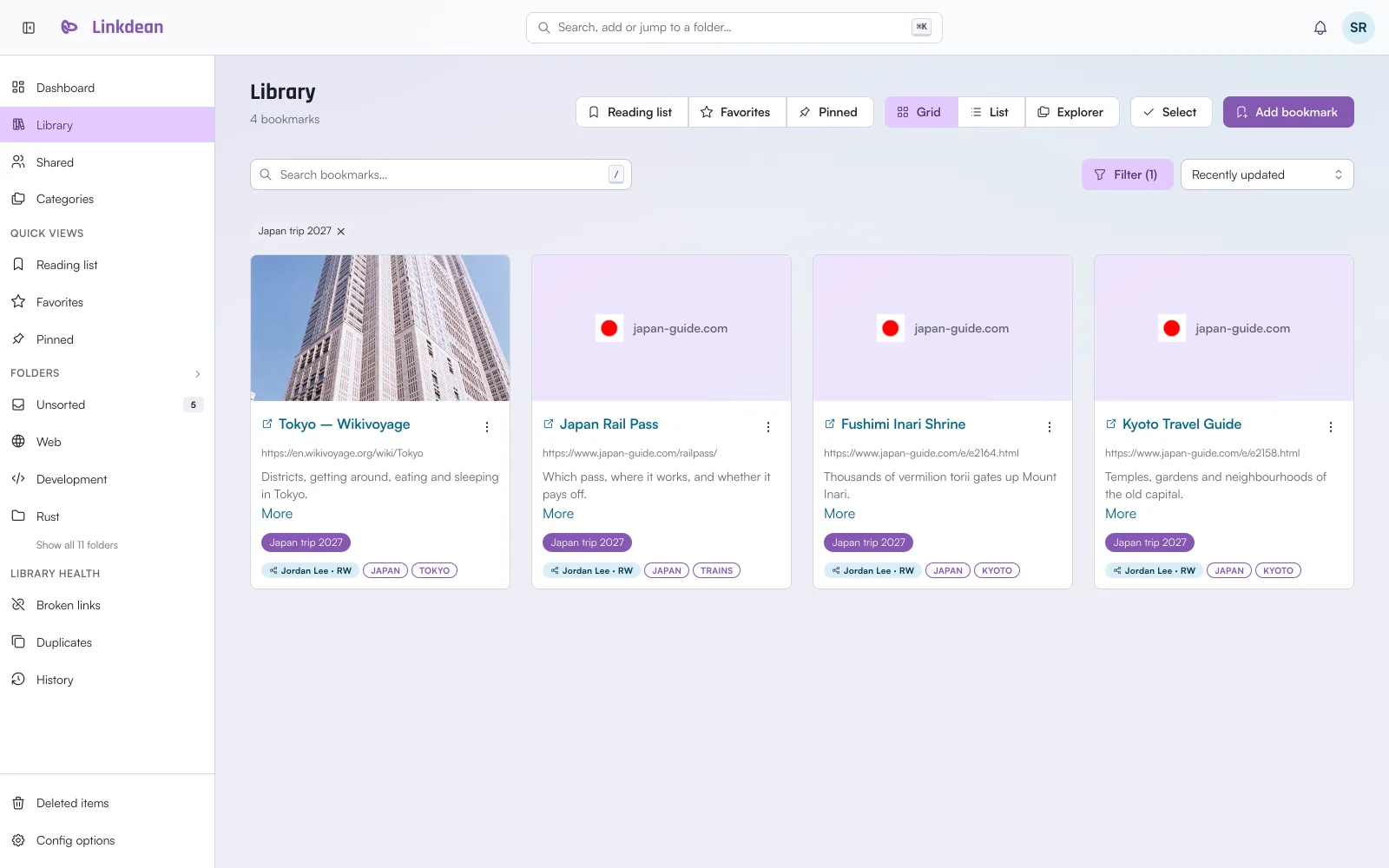
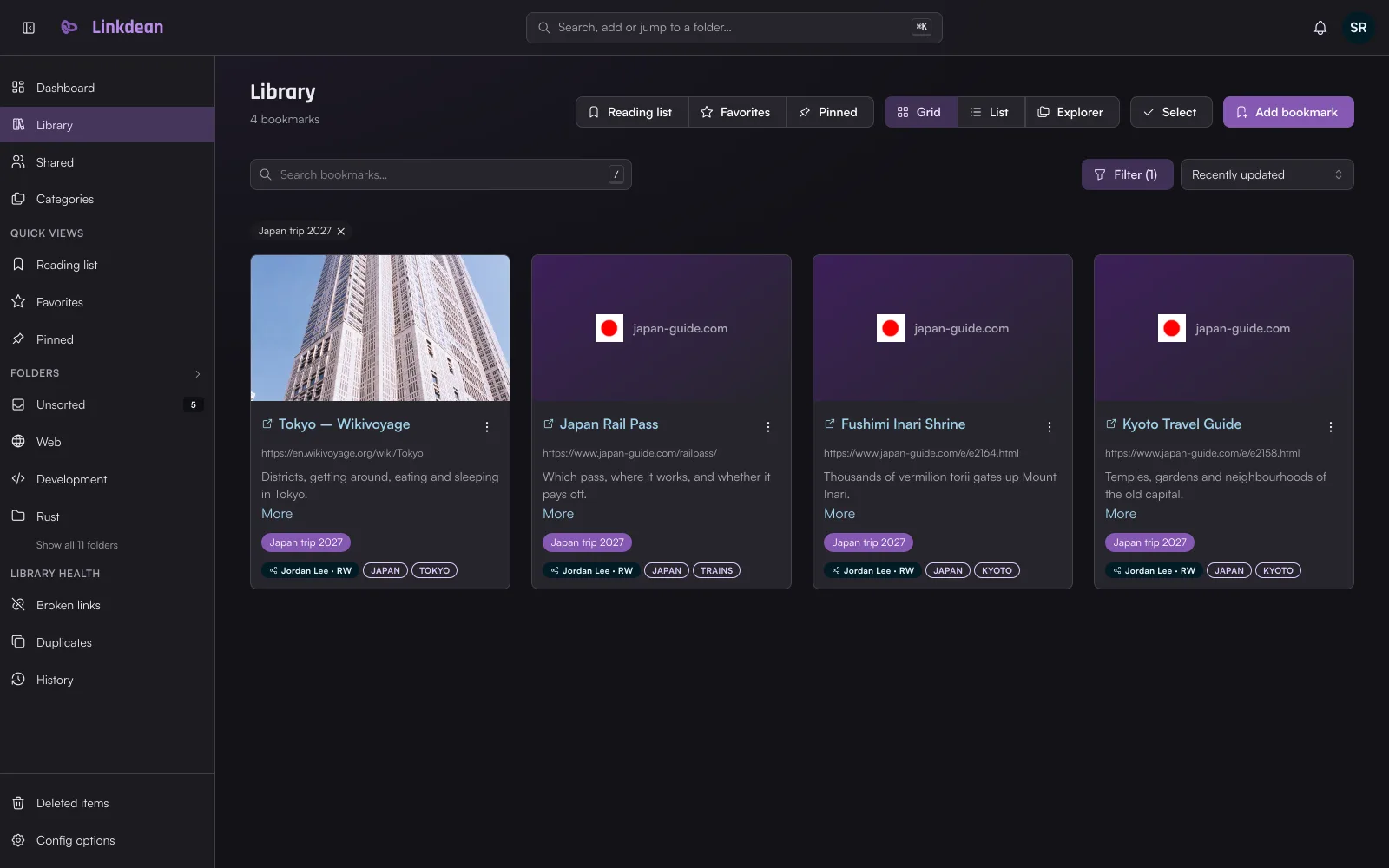
Share a folder with another Linkdean account, read-only or with write access, from the folder's menu. An unlisted public link lets anyone with the address read a list without an account. Dashboards can be shared the same way.
8. Keep a copy
Config options → Import / Export downloads your whole library as JSON (folders, bookmarks, flags and dashboards) or as browser-compatible HTML. During the beta, export now and then: see Public beta.